
Help · Your invitation site
Add your venue and map
Help your guests find the way. The Venue Location section shows where you celebrate, with a photo or map and a link to Google Maps.
1. Open Venue Location.
In the sidebar, click Configuration, then Content, and expand Venue Location.
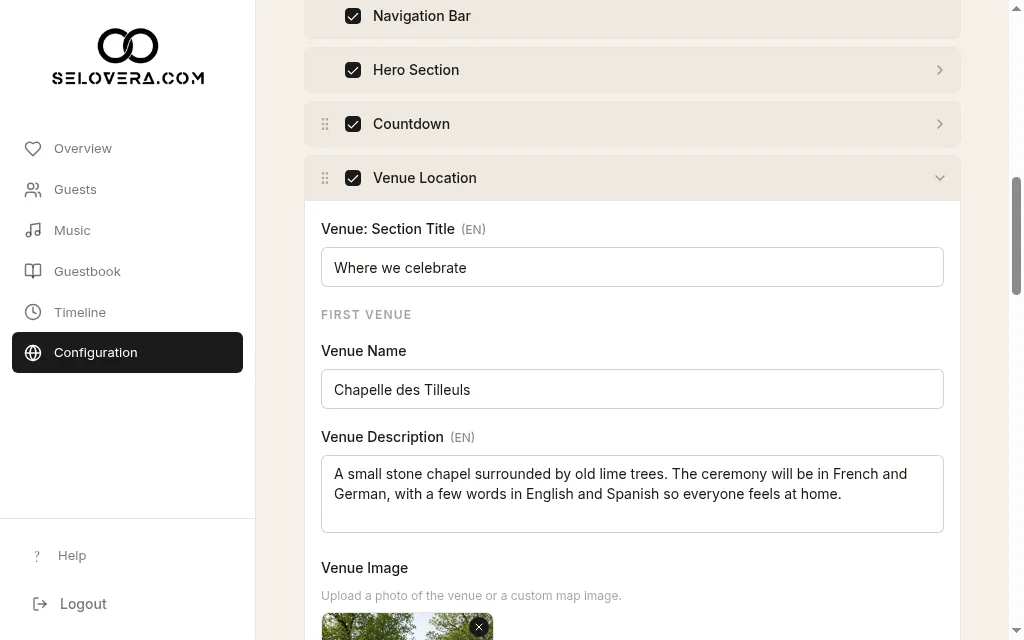
Venue location expanded 2. Name and describe the venue.
Fill in Venue Name and a short Venue Description. Write the description in each of your languages using Editing language for text fields:.
3. Add a photo or map.
Click Upload Venue Image to add a photo of the venue or your own map image.
4. Add the Google Maps link.
In Google Maps, share the venue and copy the link, then paste it in Google Maps Link.
5. Add a second venue if you need one.
Use Second Venue if, for example, the ceremony and the party are in different places. Fill it in the same way as First Venue.
6. Save.
Click Save Website Settings at the bottom of the page. Your venue image uploads straight away, but it's only added to your invitation once you save.
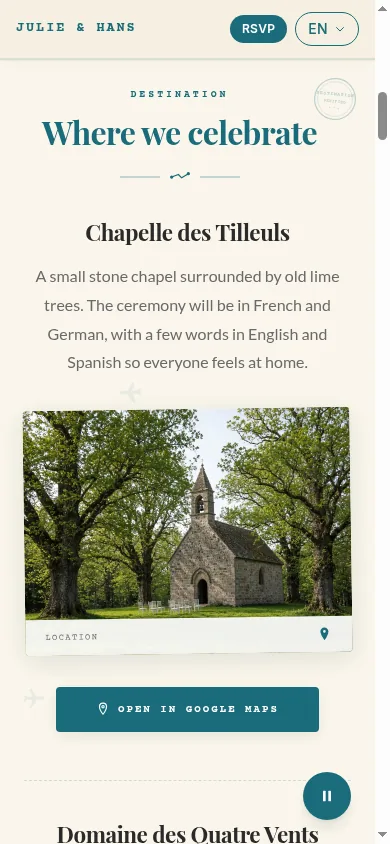
Venue on the invitation, phone view
Tips
- The venue you entered in the General tab is the one shown under the date at the top of your invitation.
- Make sure the section is ticked in the section list, or guests won't see it.
Related guides
Open this page in your dashboard
Still stuck?
Write to us at info@selovera.com or use the Contact Support form, and we'll gladly help.