
Help · Your invitation site
Add your names, date and venue
Your names, date and venue are the first things guests see on your invitation. You set them in the General tab.
1. Open the General tab.
In the sidebar, click Configuration, then General.
2. Enter your names.
Type both names in Couple Names, for example "Julie & Hans".
3. Set your wedding date.
Pick the day in Wedding Date.
4. Add the venue.
Type it in Venue. This is the place shown under the date at the top of the page.
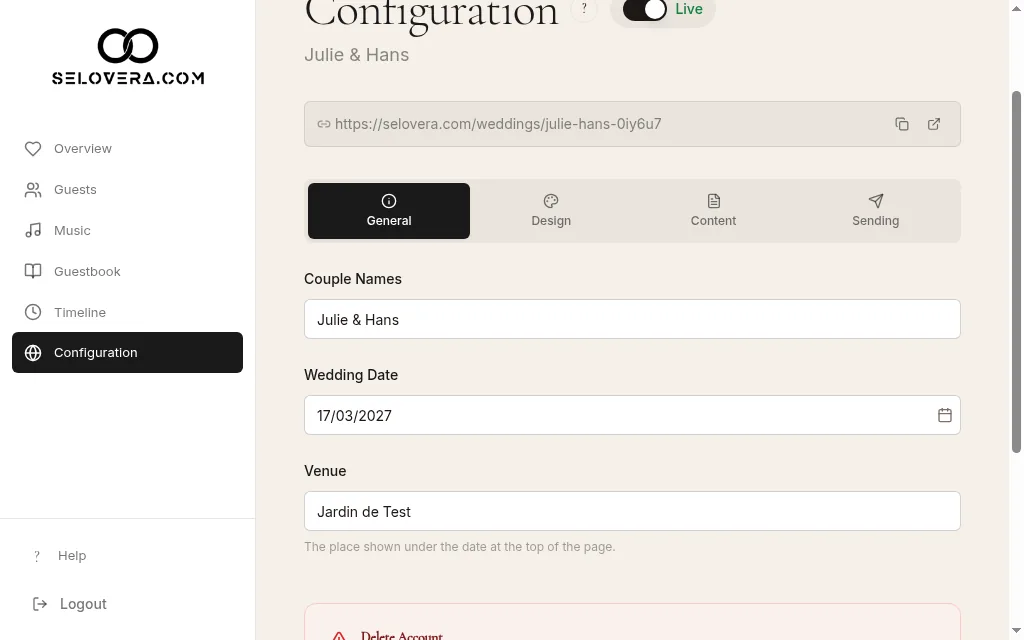
General tab filled in 5. Save.
When you're done, click Save Website Settings at the bottom of the page. Changes are not saved automatically.
Tips
- If the date isn't valid, you'll see "Invalid date" when you save.
- Want to add more about the venue, a photo or a map link? See the venue and map guide.
- You can switch between the General, Design, Content and Sending tabs before saving: one click on Save Website Settings saves all four.
Related guides
Open this page in your dashboard
Still stuck?
Write to us at info@selovera.com or use the Contact Support form, and we'll gladly help.