
Help · Your invitation site
Add your hero photos
Your hero photos are the big pictures at the top of your invitation, next to your names. Depending on your design, it shows one or two of them.
1. Open the Hero Section.
In the sidebar, click Configuration, then Content. In the section list, click Hero Section to expand it.
2. Check how many photos your design shows.
The hint says This design shows 1 photo or This design shows up to 2 photos. Minimal Luxe and Newspaper use one; the other designs use two.
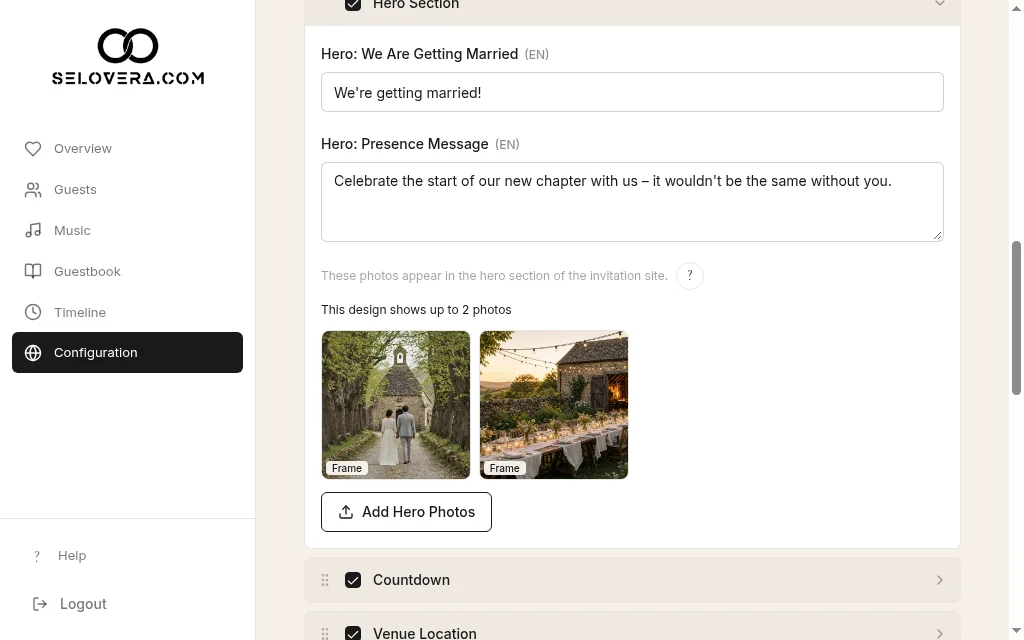
Hero section expanded, with the two-photo note and Add hero photos 3. Add your photos.
Click Add Hero Photos and choose your pictures. Large photos are optimised first ("Optimising…"). Your photos are saved as soon as they're uploaded, and removing a photo also saves straight away.
4. Frame each photo.
Click Frame to open Frame this photo. In the Mobile and Desktop tabs, drag the outline (Mobile image focus point in the Mobile tab, Desktop image focus point in the Desktop tab) to choose the part of the photo guests see, and use the Zoom slider (1× to 3×) to zoom in. As the hint says: "The outline matches the invitation. Drag it, then save the page."
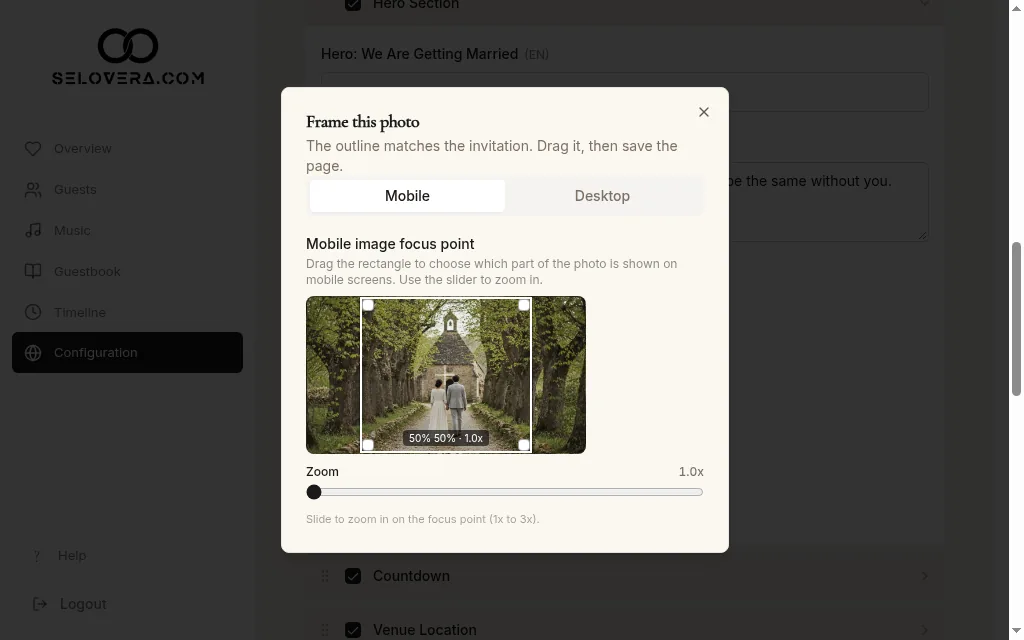
Frame this photo dialog, Mobile tab, zoom slider 5. Save your framing.
Framing is only kept after you click Save Website Settings at the bottom of the page. Changes are not saved automatically.
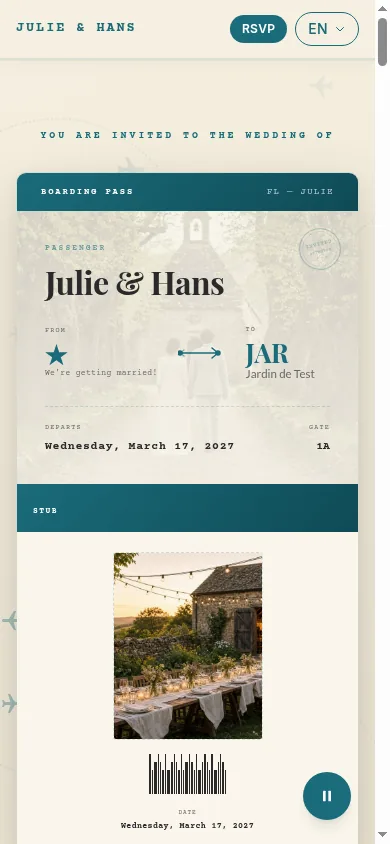
Hero photo on the invitation, phone view
Tips
- Frame both the Mobile and Desktop tabs: phones and computers each show their own part of the photo.
- Example photos carry an EXAMPLE, REPLACE ME badge. They show in your preview until you replace them, but guests never see them on your published invitation.
- Use Preview invitation site to check your photos on a phone and on a computer.
Related guides
Open this page in your dashboard
Still stuck?
Write to us at info@selovera.com or use the Contact Support form, and we'll gladly help.