
Help · Your invitation site
Choose your design and colour
Choose the look that feels like the two of you. You can try as many designs as you like, and change your mind at any time.
1. Open the Design tab.
In the sidebar, click Configuration, then Design.
2. Pick a design.
Under Template Design, click the design you like. There are many designs to choose from, from elegant to playful.
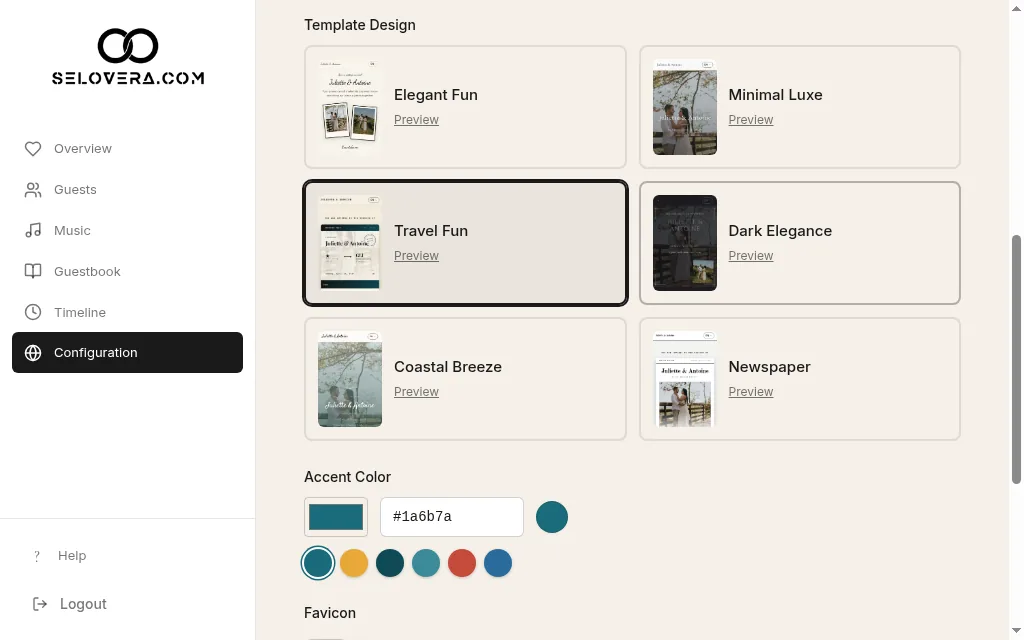
Design tab, design grid 3. Choose your accent colour.
Under Accent Color, click a swatch or type a hex code. Each design remembers its own colour, so if you switch back, your choice is still there.
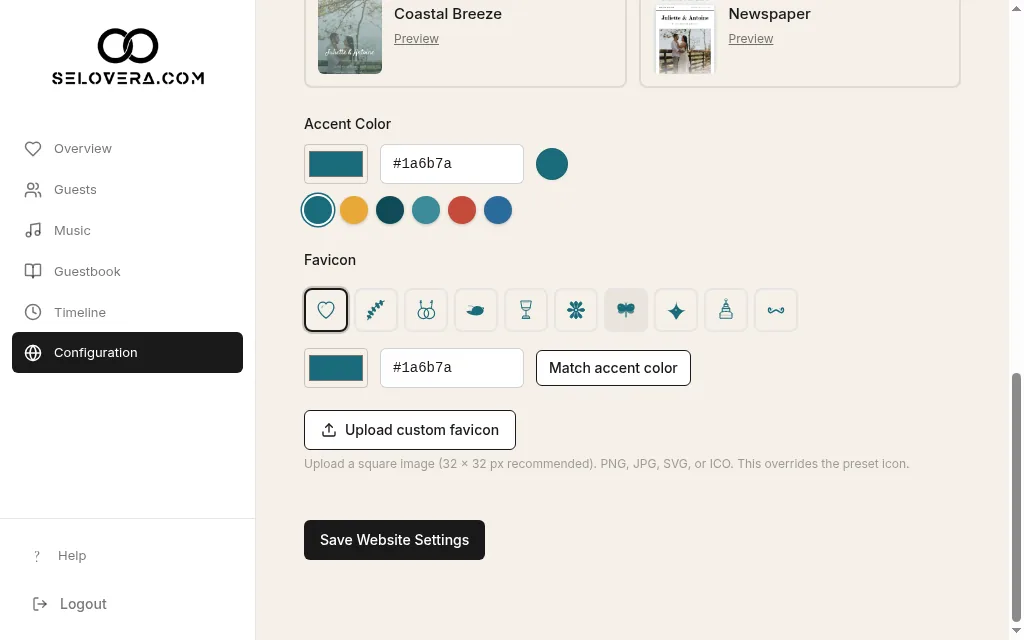
Accent colour swatches and favicon 4. Choose your favicon.
Under Favicon, you choose the small icon in the browser tab. Pick one of the preset icons and choose Match accent color, or click Upload custom favicon to use your own (a square image, 32 × 32 px recommended, PNG, JPG, SVG or ICO).
5. Save.
Click Save Website Settings at the bottom of the page. Your new design, colour and favicon only take effect once you save. Changes are not saved automatically.
Tips
- Some designs show one hero photo and others show two. The Content tab tells you how many your design uses.
- A custom favicon uploads straight away, but it's only applied after you click Save Website Settings.
- Use Preview invitation site to see how your design looks on a phone and on a computer.
Related guides
Open this page in your dashboard
Still stuck?
Write to us at info@selovera.com or use the Contact Support form, and we'll gladly help.