
Help · Guests and RSVP
Add and import your guests
Your guest list lives on the Guests page. Add guests one by one, or bring in a whole list from Excel. Once your invitation is published, each guest gets their own personal invitation link.
1. Open your guest list.
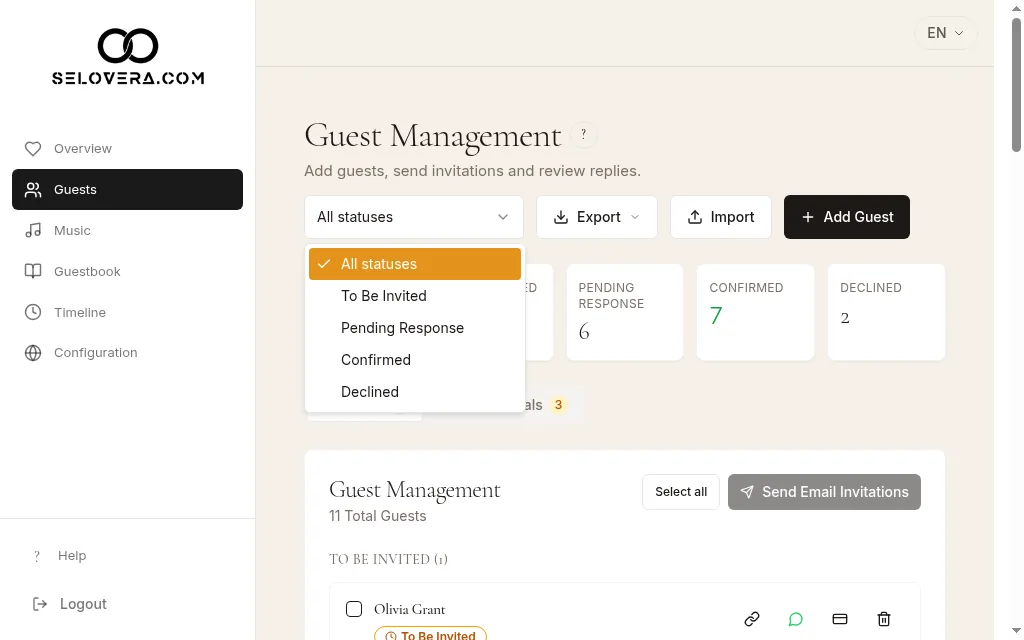
In the sidebar, click Guests. You'll be on the Guest Management tab. At the top are Export, Import and Add Guest. Each guest's row has icons to copy their link, open WhatsApp, edit and delete.
Guest list with status filter 2. Add a guest.
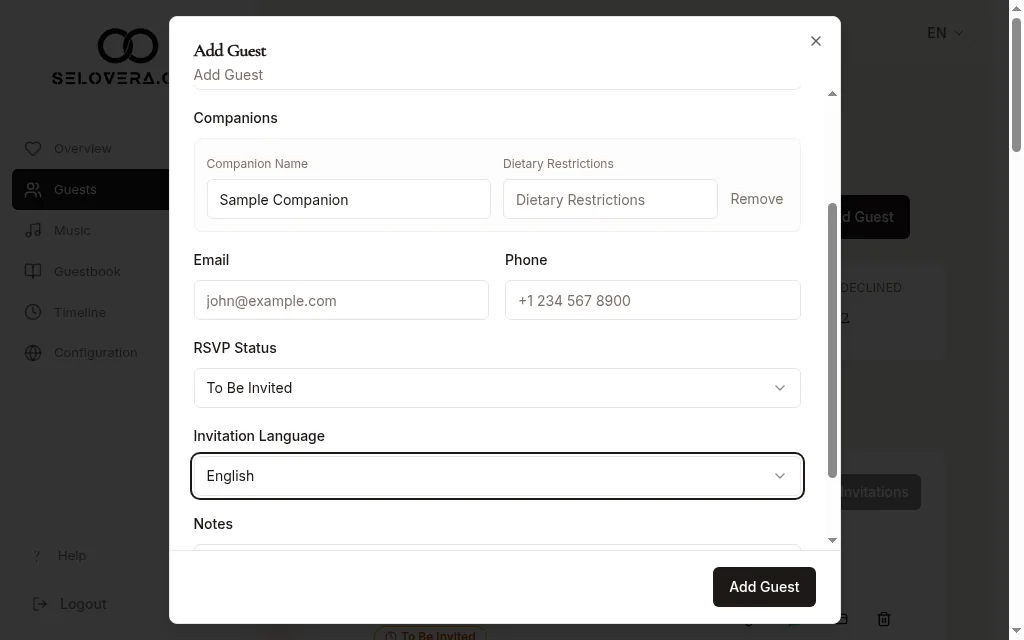
Click Add Guest. Fill in Name and Additional Guests, which are both required: in Additional Guests, enter how many people come with them (0 if nobody). Add the guest's own Dietary Restrictions if they have any. Under Companions, one line per person appears, with Companion Name and Dietary Restrictions; Remove takes a line away. Then add their Email and Phone. RSVP Status starts at To Be Invited; leave it like that. Change it by hand only if a guest answered you outside Selovera, for example by phone (Confirmed or Declined). Only guests marked To Be Invited can be selected for email invitations.
3. Choose their language.
Set Invitation Language. Their invitation, email and WhatsApp text will be in this language. Add any Notes for yourselves at the end.
Add guest dialog with a companion and invitation language 4. Save the guest.
Click Add Guest. Your guest is saved straight away and appears on the list. To change a guest later, click the edit icon on their row, then Update.
5. Import a long list.
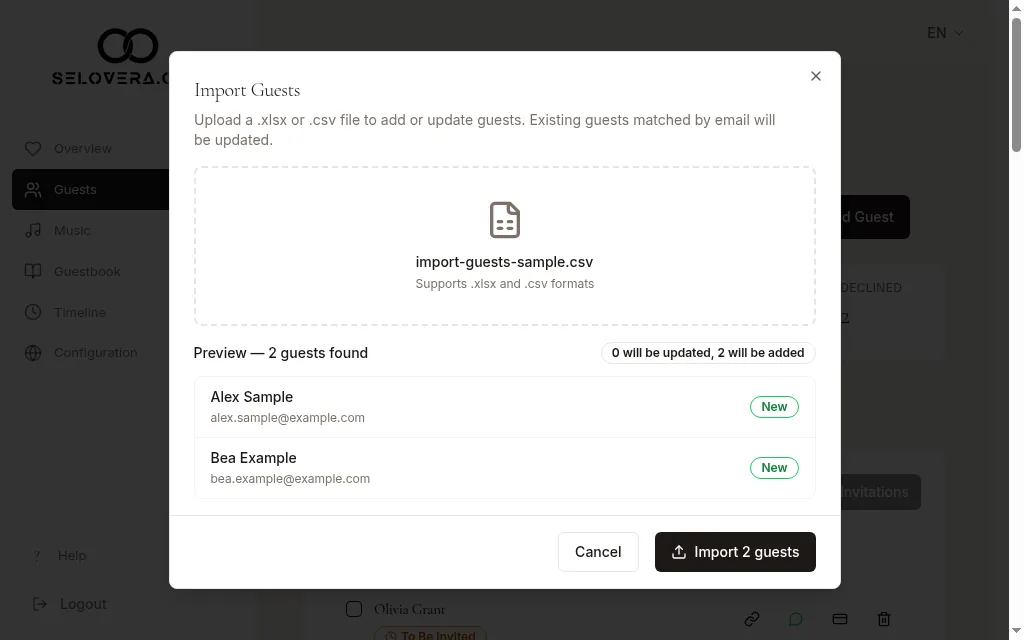
Click Import, then Download template (.csv) or Download template (.xlsx). Fill it in, upload it, check the preview ("Preview — N guest(s) found") and click Import N Guest(s).
Import guests preview 6. Find guests by status.
Use the All statuses filter to show only To Be Invited, Pending Response, Confirmed or Declined guests.
Tips
- Add an email address for guests you want to invite by email, and a phone number for WhatsApp.
- When you import, guests whose email already exists are updated and new ones are added ("X added, Y updated.").
- Use Export to download your list as .csv or .xlsx at any time.
- Each guest's personal link and the sending buttons appear once you've paid the €79 to publish your invitation. Adding guests before that is free.
Related guides
Open this page in your dashboard
Still stuck?
Write to us at info@selovera.com or use the Contact Support form, and we'll gladly help.