
Help · Guests and RSVP
Send your invitations by email
Send each guest a personal email with their own invitation link. First write the email once, then send it to the guests you choose.
1. Write your invitation email.
Go to Configuration › Sending. Under Sending Configuration, pick a language with the EN/ES/FR/DE switcher, then fill in the Subject and Body in the Invitation Email card. Do this for each of your languages. The card lists the Available placeholders: `{name}` (the guest), `{link}` (the guest's personal invitation link), `{couple}`, `{date}` and `{venue}`. They make each email personal.
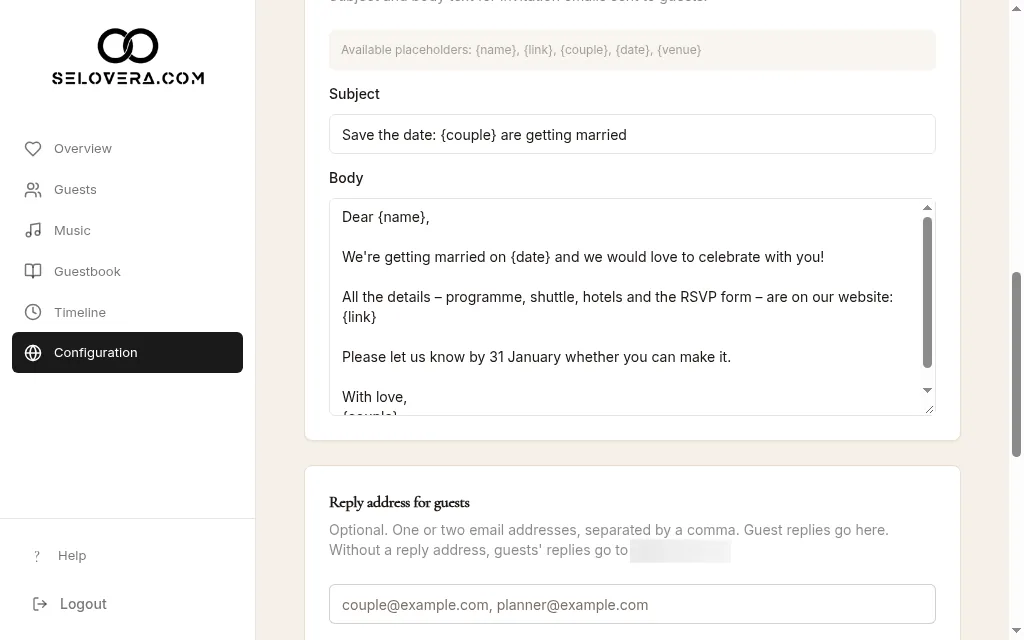
Sending tab, invitation email with placeholders 2. Choose where guests' replies go (optional).
In Reply address for guests, enter one or two email addresses, separated by a comma. If a guest replies to your email, it goes there. Without one, replies go to your account's email address.
3. Save before sending.
Click Save Website Settings at the bottom of the page.
4. Select your guests.
On Guests, tick the guests you want to invite. Only guests with the status To Be Invited can be selected. Select all helps with long lists; once clicked, it switches to Deselect all.
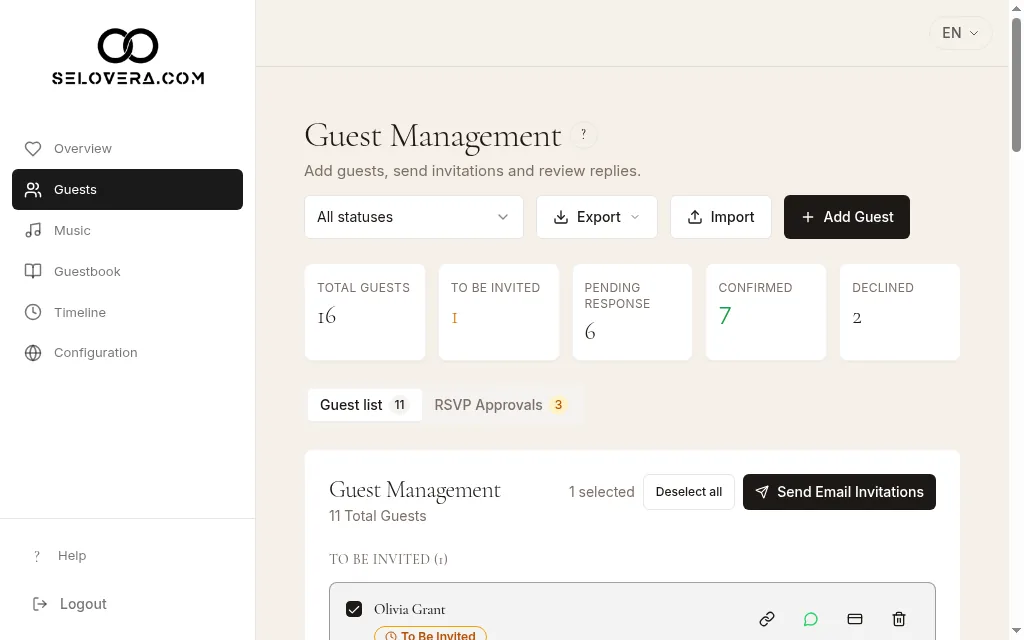
Guests ticked, and Send email invitations 5. Send.
Click Send Email Invitations. The Send Invitation Emails dialog tells you if any selected guests have no email address; they will be skipped. Click Send N Invitation(s).
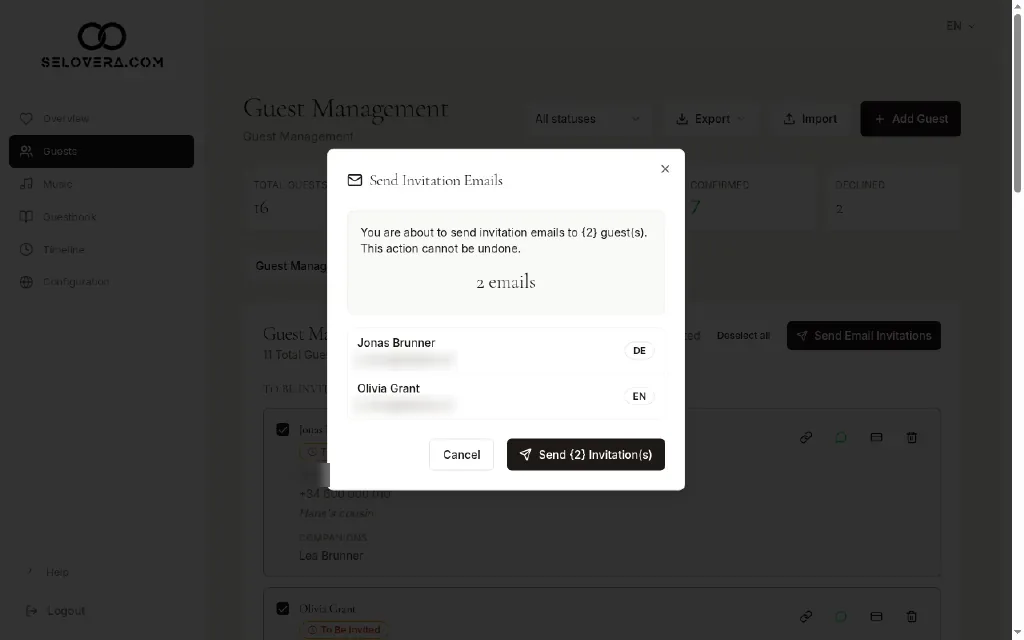
Send invitation emails dialog
Tips
- Sending can't be undone, so check your email text first.
- Afterwards, your guests move to Pending Response. You'll see "Invitations sent", or "Some invitations failed" with the numbers.
- Emails are sent from invitation@selovera.com unless you set up your own email server.
- The sending buttons appear once you've paid the €79 to publish your invitation. Each guest's reply is linked to their personal link.
Related guides
Open this page in your dashboard
Still stuck?
Write to us at info@selovera.com or use the Contact Support form, and we'll gladly help.