
Help · Guests and RSVP
Review and approve RSVP replies
Guests reply right on their invitation. Their replies wait for you in RSVP Approvals, so nothing changes on your guest list until you approve it.
1. See what a coming guest sends.
On the RSVP form on their invitation, a guest who is coming adds their companions, dietary needs, a note and, if you added a shuttle question, their answer to it.
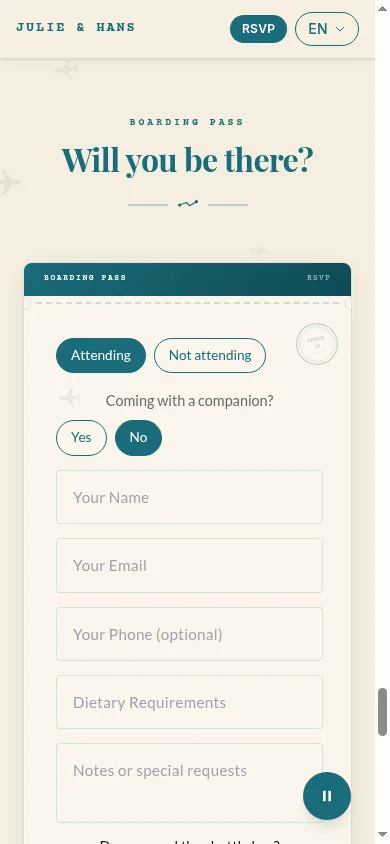
Guest RSVP form on the invitation, phone view, attending 2. See what a guest who can't come sends.
A guest can also simply say they can't come.
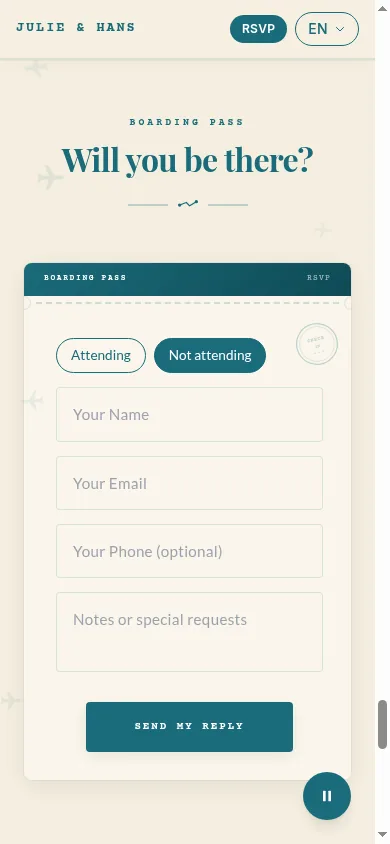
Same form after choosing not attending 3. Open RSVP Approvals.
In the sidebar, click Guests, then the RSVP Approvals tab. Each reply shows the guest's companions, dietary needs and message.
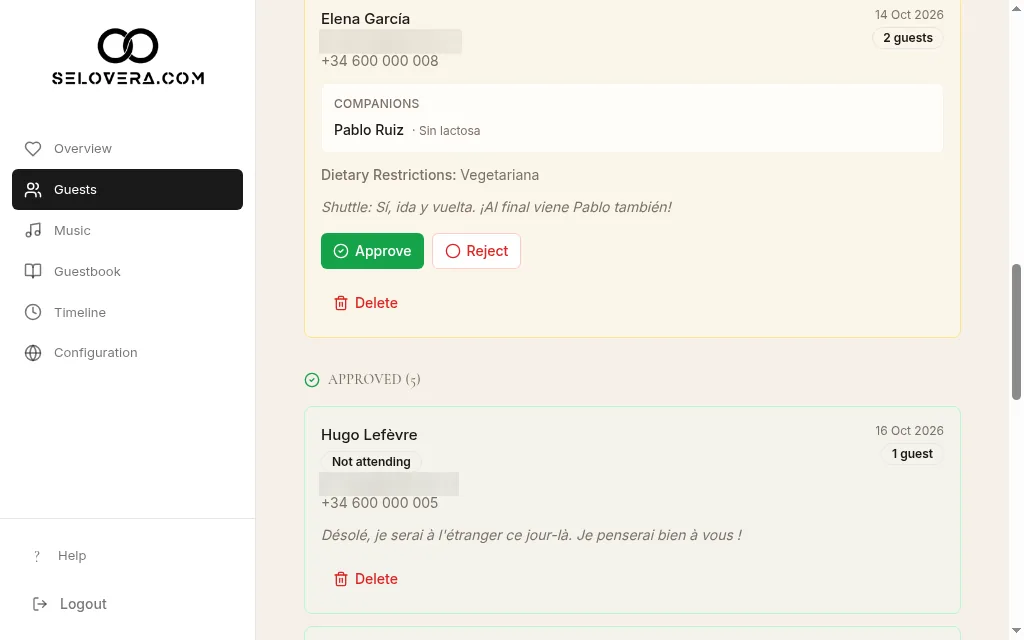
RSVP approvals with pending and approved replies 4. Approve a reply.
Click Approve. The guest is added or updated on your list as Confirmed, or Declined if they can't come. Their phone number is kept, and their note is added to yours.
5. Or reject or delete it.
Click Reject to mark the reply as rejected, or Delete to remove it.
Tips
- All of these act straight away.
- If a guest edits a reply you already approved, it goes back to waiting for your approval.
- With the email notifications on, you get an email a few minutes after each reply.
Related guides
Open this page in your dashboard
Still stuck?
Write to us at info@selovera.com or use the Contact Support form, and we'll gladly help.