
Help · Guests and RSVP
Get emails about replies and messages
Stay up to date without checking your dashboard. Selovera can email you when a guest replies, and send you a short summary of new messages and song suggestions.
1. Find the setting.
Go to Configuration › Sending and look for the Email me about new replies and messages switch, below Reply address for guests. It's on by default.
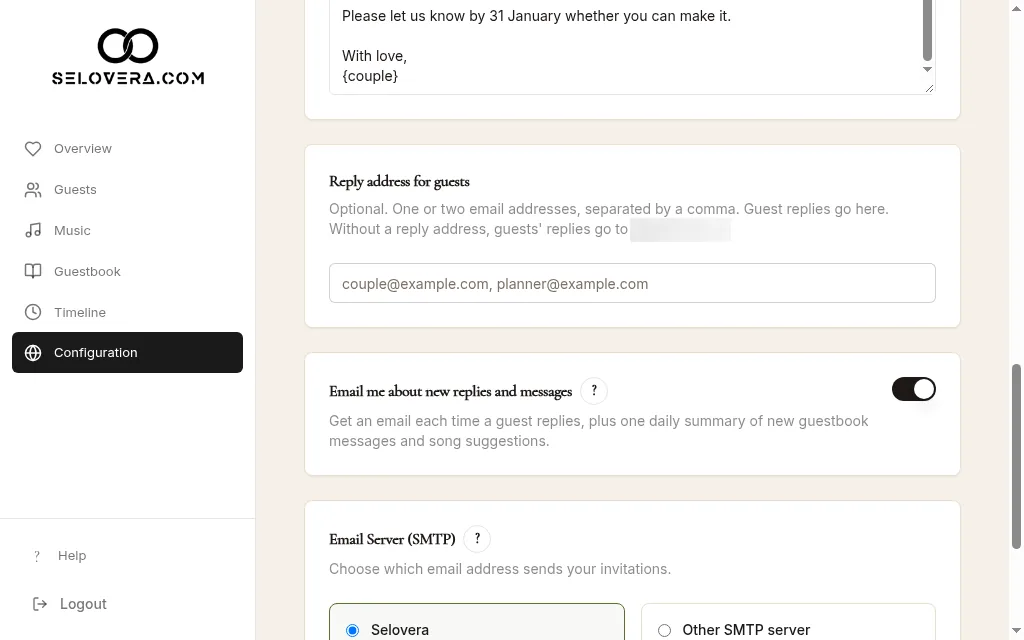
Sending tab, notifications switch and reply address for guests 2. Turn it on or off.
Switch it to your liking, then click Save Website Settings at the bottom of the page.
3. Get an email for each reply.
About 3–5 minutes after a guest saves or edits their RSVP, you get an email with their full reply: coming or not, companions, dietary needs, phone and notes. If more than 3 replies arrive at once, they come together in one email.
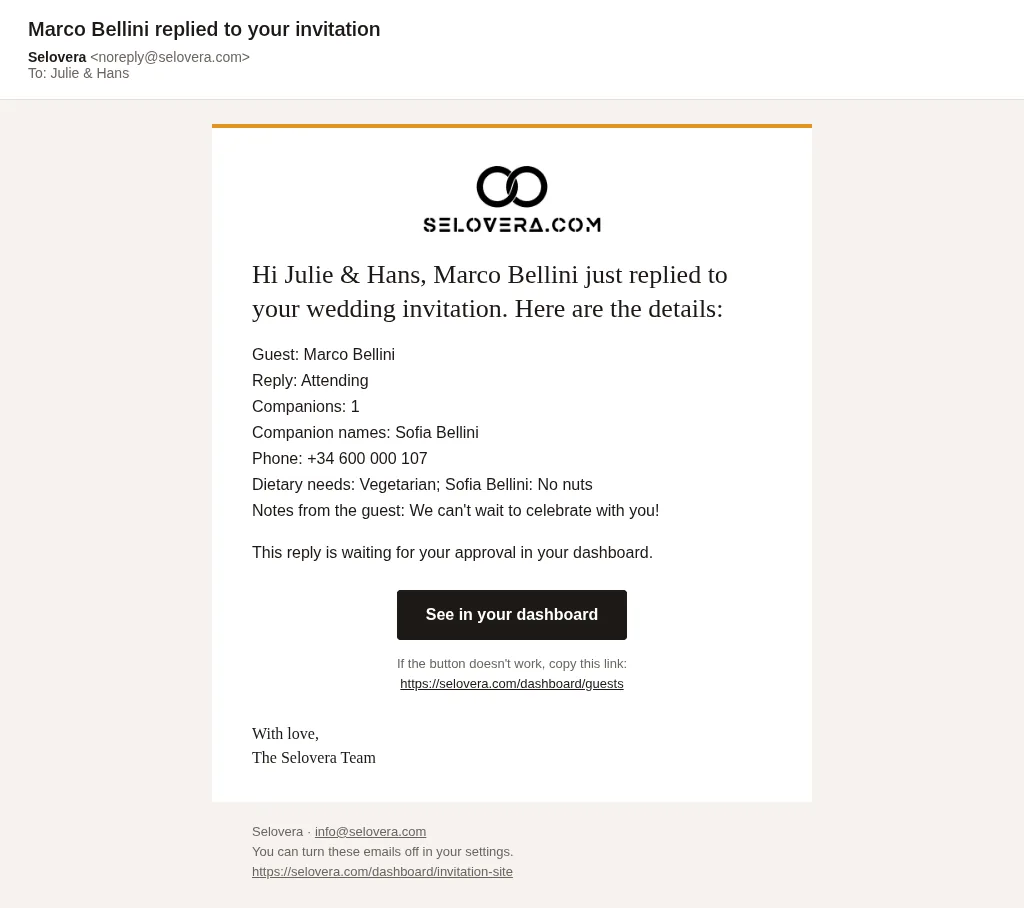
Example reply notification email 4. Get your morning summary.
Every morning at 9:00 (Madrid time), you get one email with new guestbook messages and song suggestions, but only on days something new came in.
5. Answer a guest directly.
Just click "Reply" in your email app: your answer goes straight to the guest.
Tips
- The emails go to your account's email address, in your dashboard language.
- A reply still needs your approval in RSVP Approvals.
Related guides
Open this page in your dashboard
Still stuck?
Write to us at info@selovera.com or use the Contact Support form, and we'll gladly help.