
Help · Your day and music
Set up and moderate your guestbook
Your guestbook collects warm words from your guests. You choose who can read them, and you approve each one.
1. Open the Guestbook page.
In the sidebar, click Guestbook. If the guestbook is off, tick the Guestbook section in Configuration › Content and click Save Website Settings.
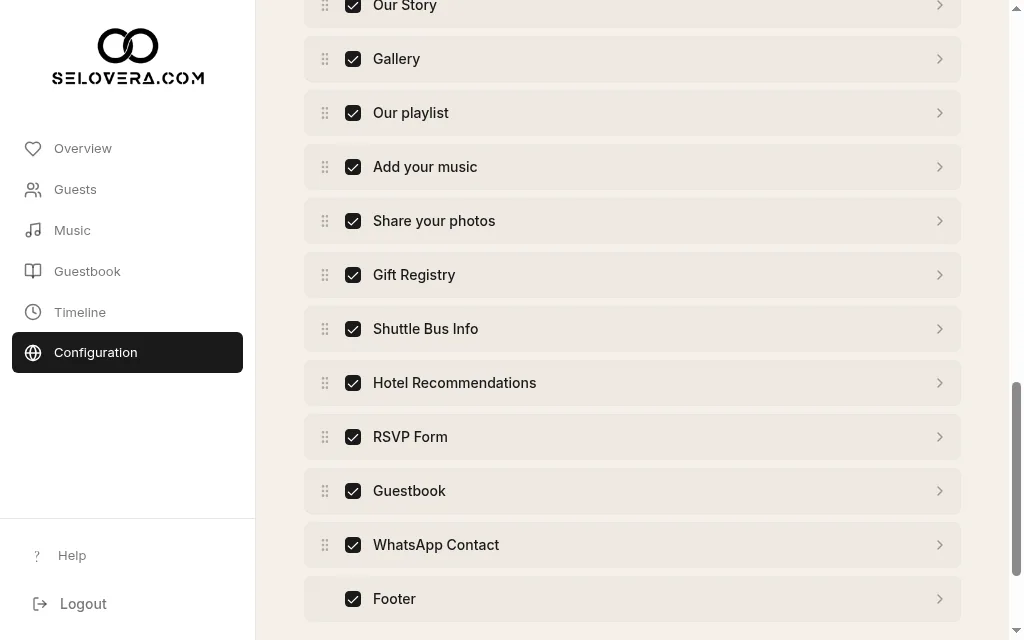
Guestbook section checkbox in Configuration › Content 2. Choose who can read the messages.
Pick one of the two cards. Public: "Guests can write a message. It appears on the site after you approve it." Private: "Guests can write a message. Only you can read them."
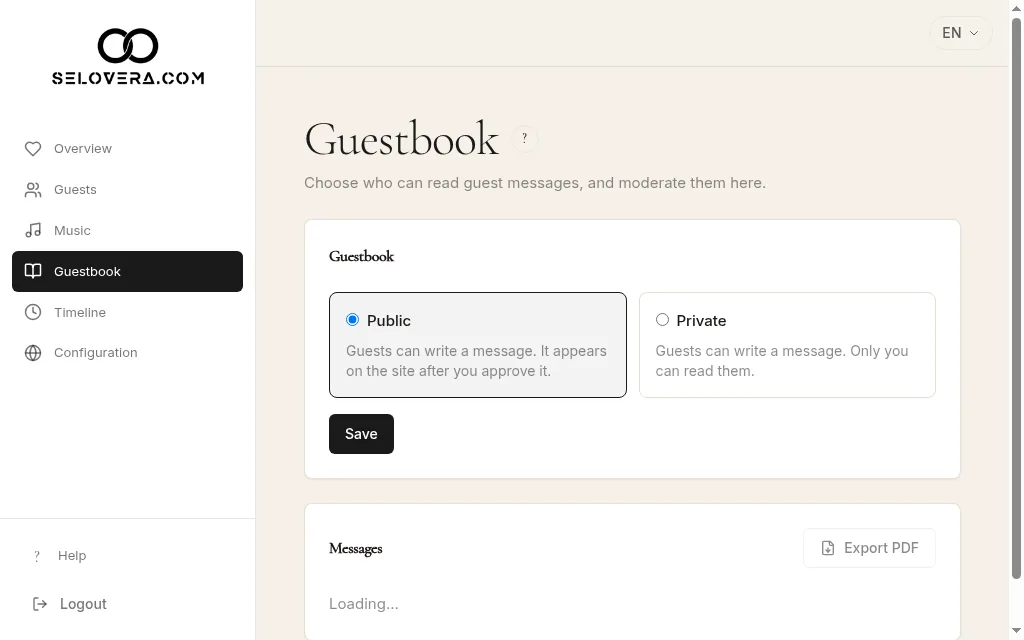
Mode cards for Public and Private, and Save 3. Save the mode.
Click Save on this page. The mode is not saved automatically.
4. Moderate messages.
New messages show "Waiting for approval". Click Approve, Hide or Show, or Delete (you'll be asked to confirm). These act straight away.
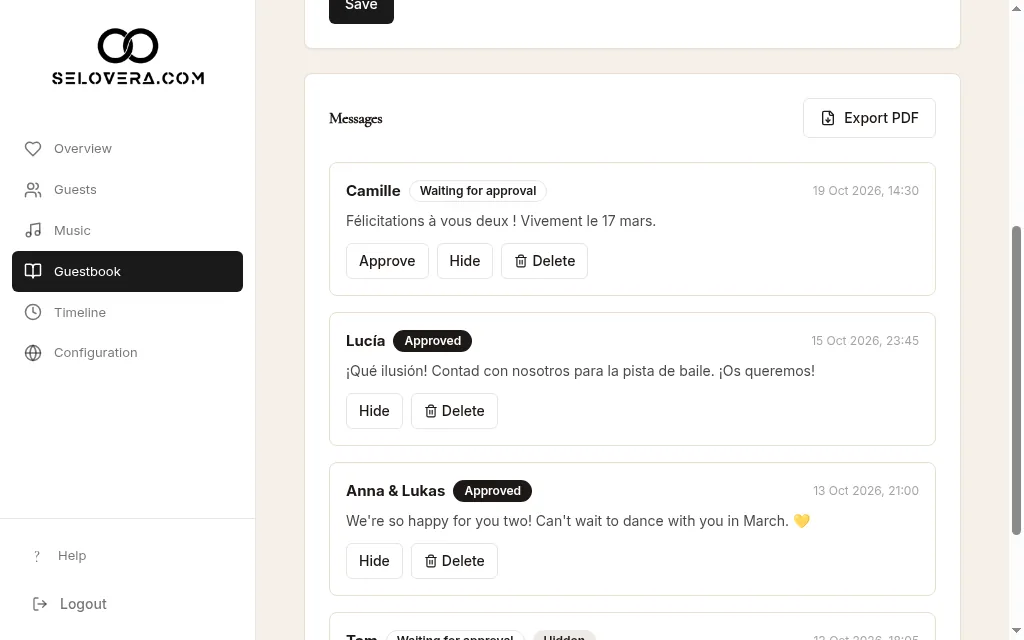
Message list with Approve, Hide, Delete and Export PDF 5. Keep them forever.
Click Export PDF to download all your messages as a keepsake.
Tips
- If you see "Activate the guestbook in configuration to see messages here.", click Open configuration and tick the Guestbook section in Configuration › Content, then click Save Website Settings.
- To switch the guestbook off completely, untick the Guestbook section in Configuration › Content and click Save Website Settings.
- With the email notifications on, you get a summary of new messages every morning at 9:00 (Madrid time) on days something comes in.
Related guides
Open this page in your dashboard
Still stuck?
Write to us at info@selovera.com or use the Contact Support form, and we'll gladly help.