
Help · Your invitation site
Add your story, gallery and photo album
Share a little of your journey together, show your favourite photos, and give guests a place to share the pictures they take on the day.
1. Write your story.
In Configuration › Content, expand Our Story and write Our Love Story in each of your languages. Leave it empty to hide the section.
2. Add gallery photos.
Expand Gallery and click Add Photos. You can choose several at once; they appear as a polaroid-style carousel. Photos are saved as soon as they're uploaded, and removing one also saves straight away.
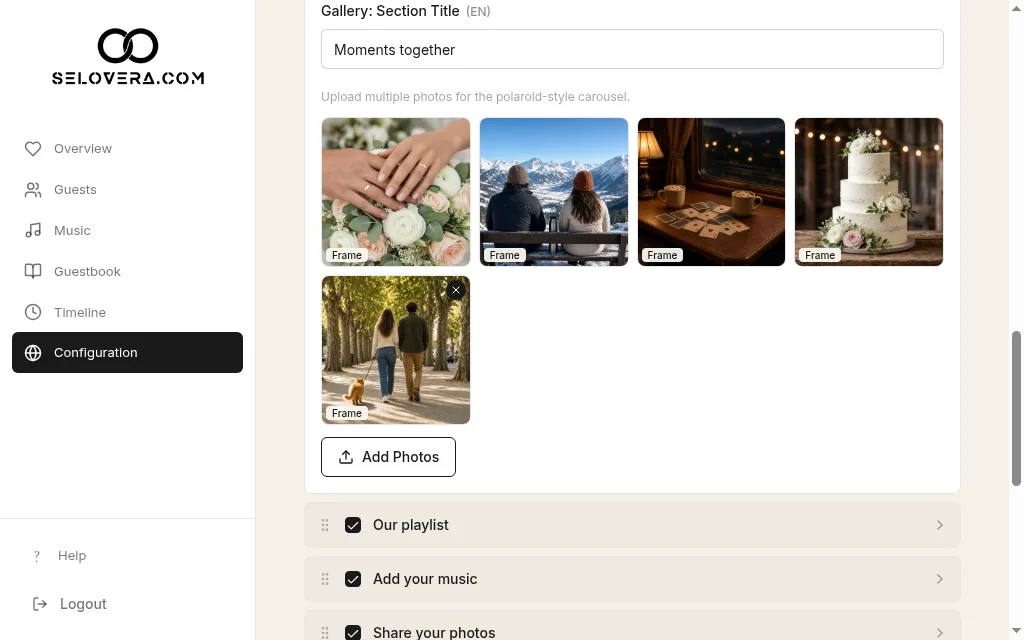
Gallery section with photos 3. Add your photo album link.
Create a shared album (for example in Google Photos or iCloud), copy its link, and paste it in Photo album link under Share your photos. It must start with https.
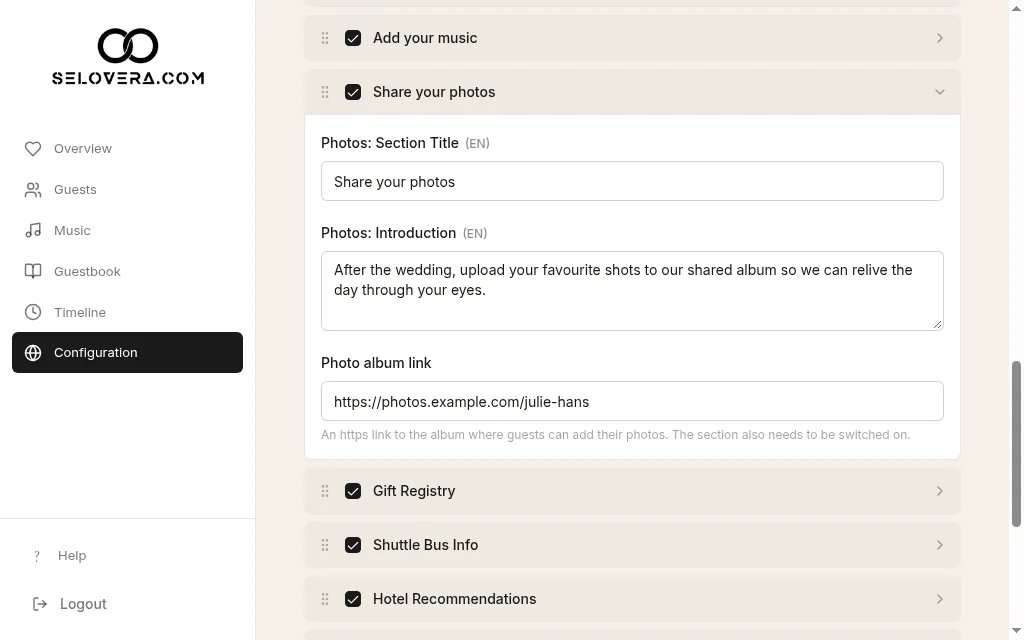
Share your photos, with the album link 4. Switch the section on.
Make sure Share your photos is ticked in the section list.
5. Save.
Click Save Website Settings at the bottom of the page. Your story and album link are not saved automatically.
Tips
- If the album link isn't valid, you'll see "Enter a valid https link." when you save.
- Check that your shared album lets guests add photos.
- Example photos and texts carry an EXAMPLE, REPLACE ME badge. Guests never see them on your published invitation.
Related guides
Open this page in your dashboard
Still stuck?
Write to us at info@selovera.com or use the Contact Support form, and we'll gladly help.