
Help · Guests and RSVP
Send from your own email server
By default, your invitation emails are sent from Selovera's address, and that's what we recommend. If you'd rather send them from your own email address, you can use your own email server.
1. Open the email server settings.
Go to Configuration › Sending › Email Server (SMTP).
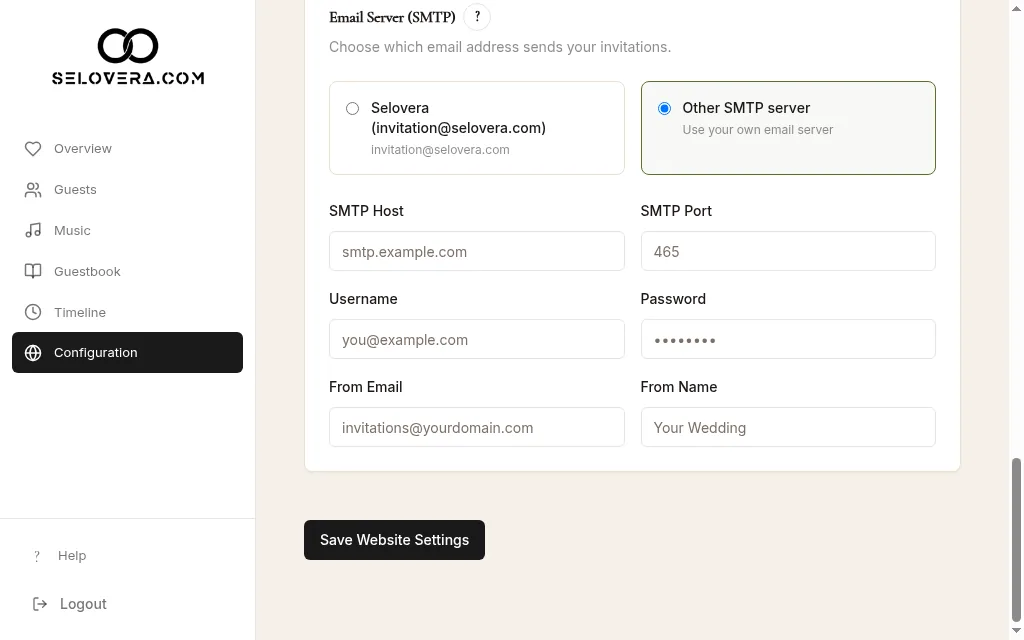
Email server (SMTP) choices 2. Keep the default, or choose your own.
Email Server (SMTP) has two options: Selovera (invitation@selovera.com), selected by default, and Other SMTP server ("Use your own email server"). To use your own, choose Other SMTP server.
3. Enter your server details.
Once you choose Other SMTP server, more fields appear. Fill in SMTP Host, SMTP Port, Username, Password, From Email and From Name. Your email provider gives you these.
4. Save.
Click Save Website Settings at the bottom of the page.
Tips
- This is only for people who know their email provider's SMTP settings. If you're not sure, keep the default.
- Guests' replies to your email go to your Reply address for guests if you've set one.
Related guides
Open this page in your dashboard
Still stuck?
Write to us at info@selovera.com or use the Contact Support form, and we'll gladly help.