
Help · Your invitation site
Write your texts in each language
Every section of your invitation has its own texts: a title, a welcome message, a closing line. Here's how to make them yours, in every language you offer.
1. Open the Content tab.
In the sidebar, click Configuration, then Content. You'll find your sections under Website Content Management.
2. Choose the language you're writing in.
If your invitation has more than one language, use Editing language for text fields: to switch between them.
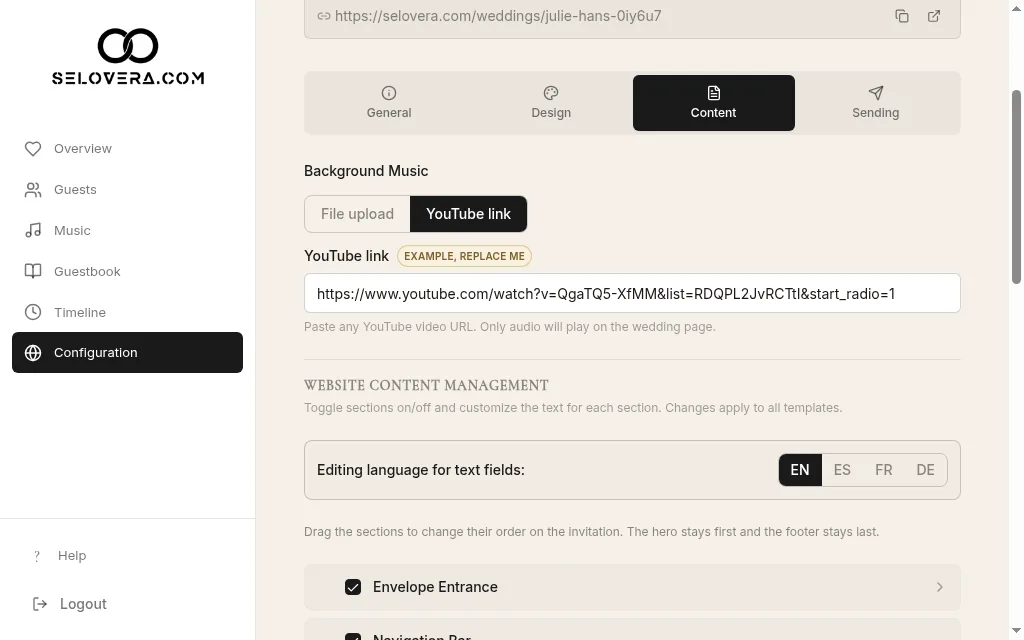
Content tab, editing-language switcher 3. Open a section and edit its texts.
Click a section to expand it, then change its texts, for example Hero: We Are Getting Married, Hero: Presence Message or Footer: Closing Message.
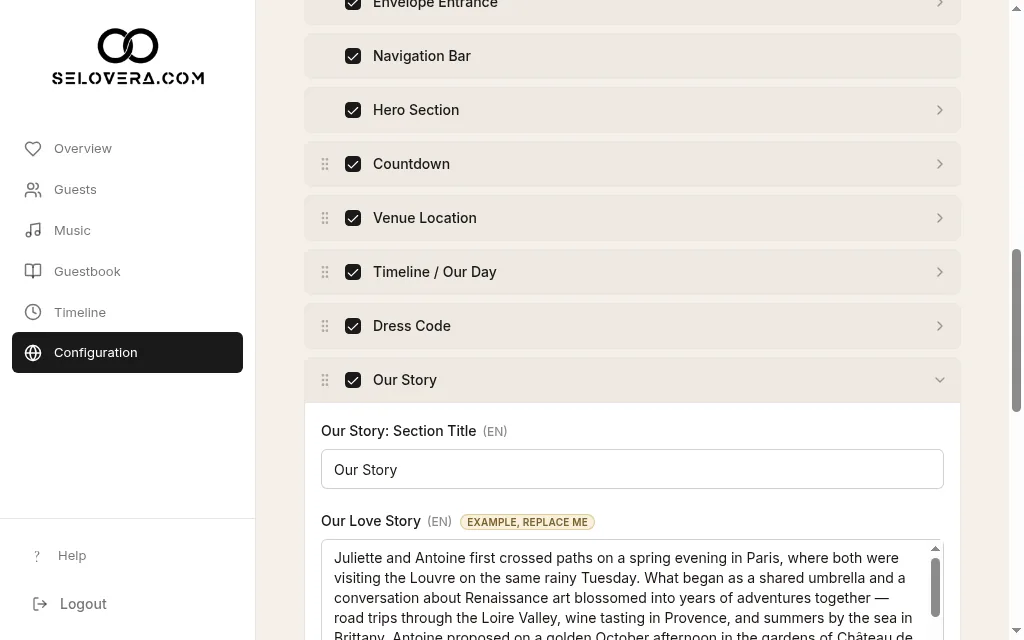
An expanded section with text fields and an example badge 4. Replace the example texts.
A text marked EXAMPLE, REPLACE ME is still a sample. Guests won't see it until you change it.
5. Repeat for your other languages.
Switch the editing language and write each text again, then switch back.
6. Save.
Click Save Website Settings at the bottom of the page before you leave. Changes are not saved automatically. If you try to leave with unsaved changes, the dashboard warns you first.
Tips
- Your texts apply to every design, so you can change the design later without rewriting anything.
- You can move between the General, Design, Content and Sending tabs before saving. Your edits are kept until you click Save Website Settings.
- Save now and then while you write, so nothing gets lost.
Related guides
Open this page in your dashboard
Still stuck?
Write to us at info@selovera.com or use the Contact Support form, and we'll gladly help.