
Help · Your day and music
Plan your wedding timeline
The timeline is the programme of your day: every moment in order, with its time, place and a short description. You decide which moments guests see.
1. Open your timeline.
In the sidebar, click Timeline. You'll see your whole day on the Wedding Timeline page.
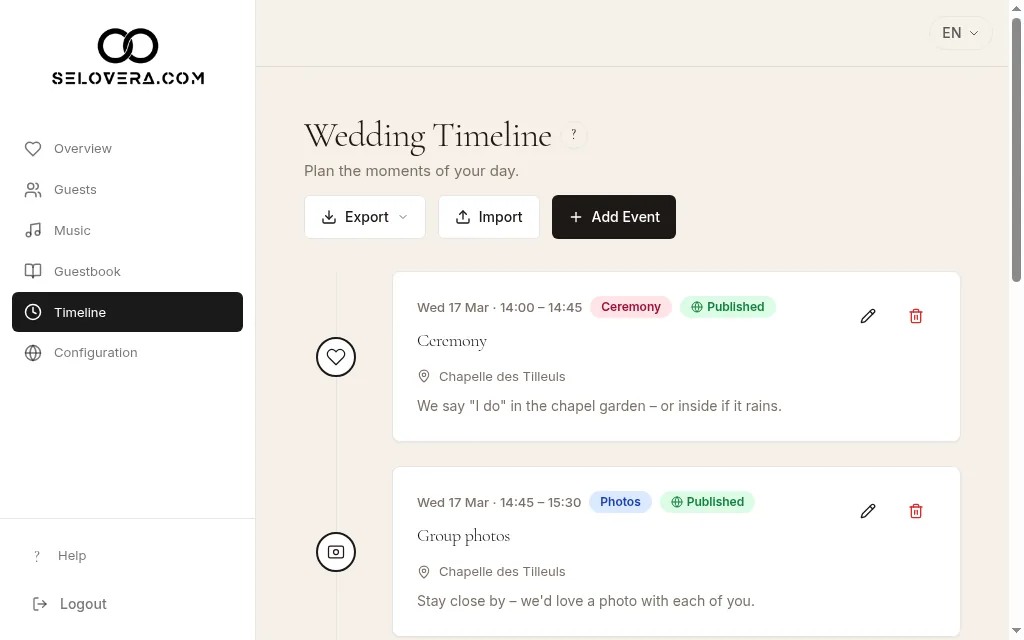
Timeline list 2. Add a moment.
Click Add Event. Fill in Event (the name of the moment), Date and the start Time; these are required. The second Time field is the end time and is optional. Then add a Location, a Description and a Category (Preparation, Photos, Ceremony, Cocktail, Dinner, Party, Cake, Reception or Other).
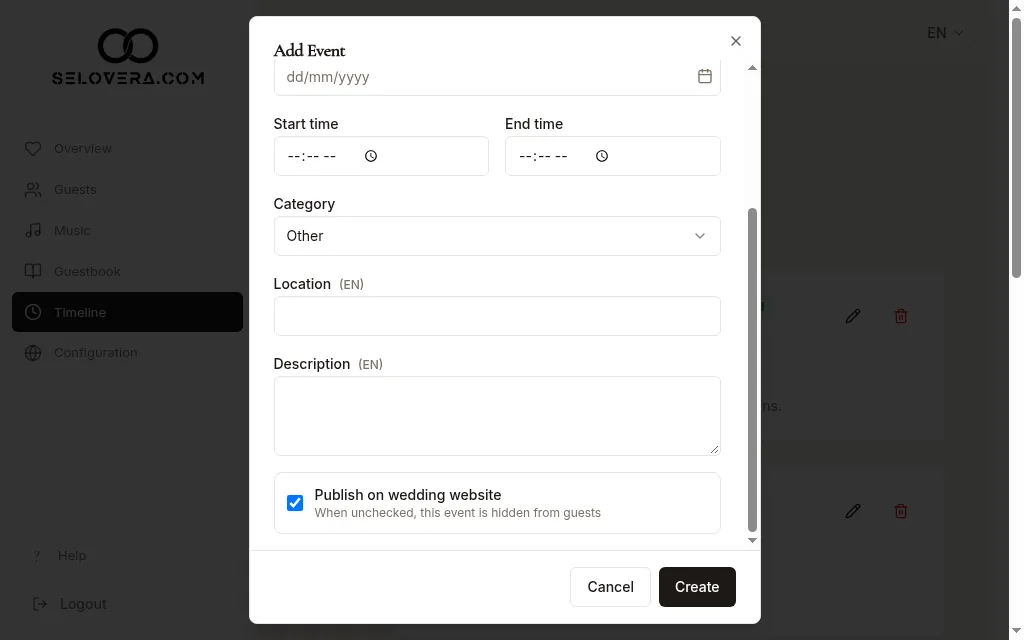
Add event dialog with Publish on wedding website 3. Write it in each language.
Use Editing language for text fields to write the texts in each of your invitation's languages.
4. Choose who sees it.
Tick Publish on wedding website to show the moment on your invitation. When unchecked, it's hidden from guests and stays private for you.
5. Save it.
Click Create (or Update when editing). It's saved straight away. Cancel closes the dialog without saving.
6. Import a whole programme, if you have one.
Click Import, download the template (.xlsx or .csv), fill it in and upload it. Check the preview, then click Import N event(s). Use Export to save your timeline as Excel or CSV.
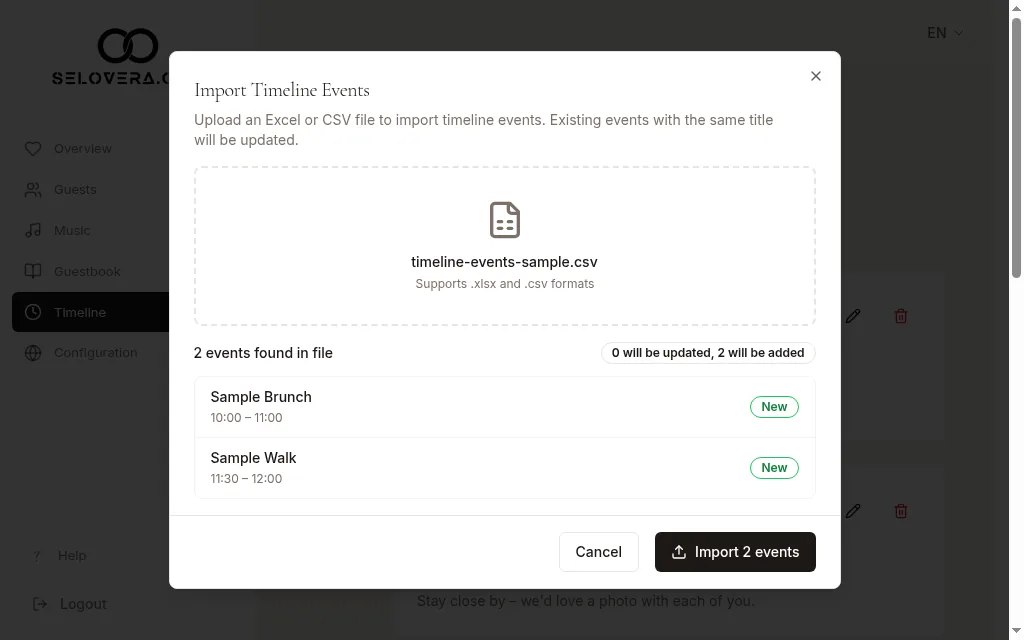
Import dialog preview
Tips
- To remove an event, click the delete icon. You are asked to confirm before it is deleted.
- When you import, events with the same title are updated and new ones are added.
- Your published moments appear in the Timeline / Our Day section, so keep it ticked in Configuration › Content.
Related guides
Open this page in your dashboard
Still stuck?
Write to us at info@selovera.com or use the Contact Support form, and we'll gladly help.