
Help · Account
Log in, reset your password and change language
Here's how to get into your dashboard, what to do if you've forgotten your password, and how to switch the dashboard language.
1. Log in.
Go to selovera.com/login, enter your Email Address and Password, and click Sign In. Tick Remember me to stay signed in on this device. If you created your account with Google, click Sign in with Google instead.
2. Reset a forgotten password.
On the login page, click Forgot your password?. On the Reset Password page, enter your Email Address and click Send Reset Link. You'll see "Password reset link sent! Check your email." Open the link in the email, enter your New Password and Confirm Password, and click Update Password. You're then taken back to the login page.
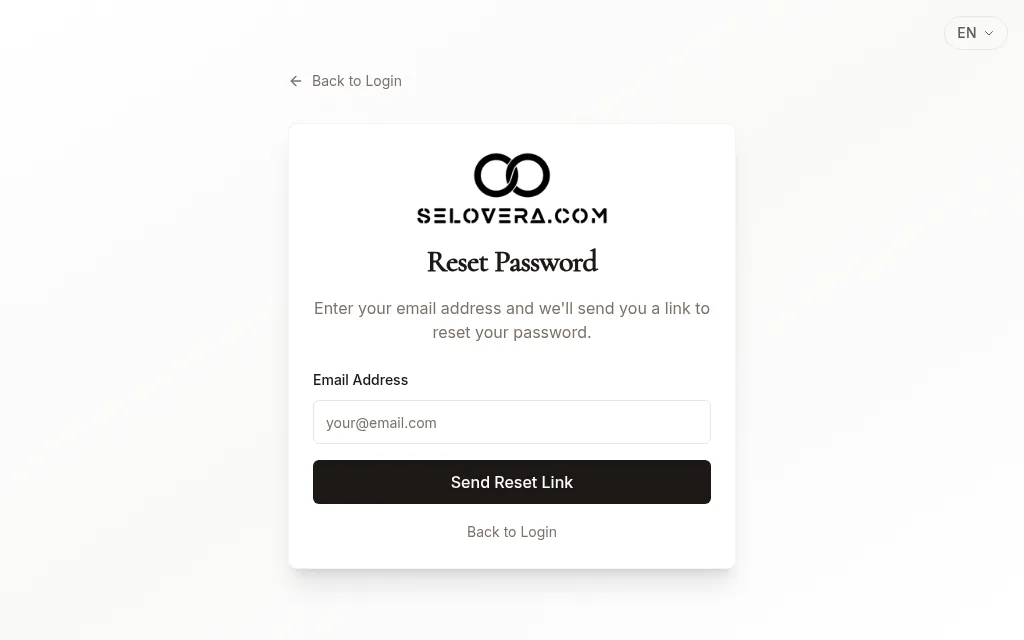
Reset-password page 3. Confirm your email if asked.
If your email address isn't confirmed yet, the login page tells you so. Click the link in the confirmation email we sent you, or click Resend confirmation email to get a new one.
4. Change the dashboard language.
Use the language switcher in the header to choose English, Spanish, French or German. It changes straight away.
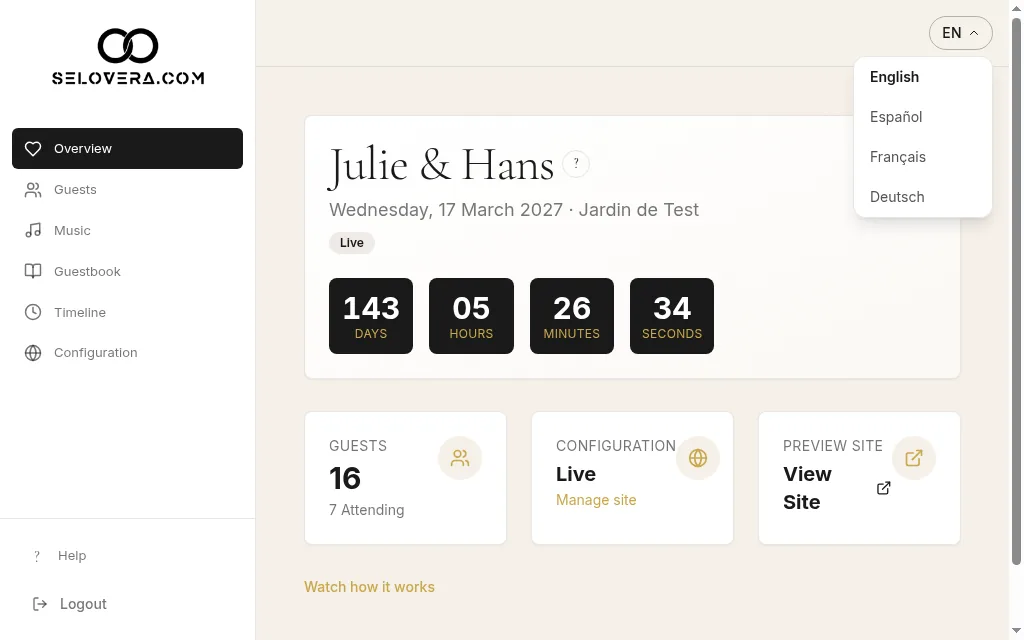
Header language switcher open
Tips
- The dashboard language also sets the language of the notification emails you receive.
- The languages your guests see are set separately, in Configuration › Design › Supported Languages.
Related guides
Open this page in your dashboard
Still stuck?
Write to us at info@selovera.com or use the Contact Support form, and we'll gladly help.