
Help · Your invitation site
Add background music
Set the mood with a song that plays on your invitation. Guests can play and pause it themselves.
1. Open Background Music.
In the sidebar, click Configuration, then Content. Background Music is at the top.
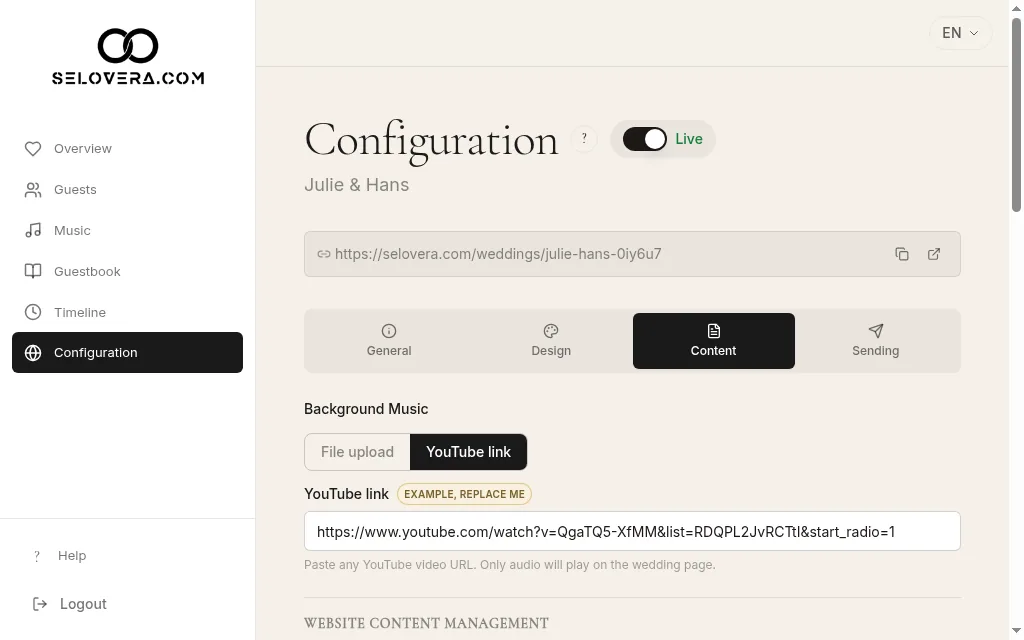
Background music with file upload and YouTube link 2. Choose your source.
Pick File upload to use your own audio file, or YouTube link to use a song from YouTube.
3. Add your song.
For a file, click Upload audio and choose an MP3, WAV or OGG file. For YouTube, paste the video's link; only the audio plays on your invitation.
4. Save.
Click Save Website Settings at the bottom of the page. Your audio file is only uploaded when you save, so don't leave the page before.
Tips
- To swap the song later, click Change audio, then save again.
- Use Preview invitation site to listen to it the way your guests will.
Related guides
Open this page in your dashboard
Still stuck?
Write to us at info@selovera.com or use the Contact Support form, and we'll gladly help.